Searching for an Account
This option allows users to manage and view information about the internal purchases and their current folios and search for any existing accounts.
Perform the following steps to search for an account:
House Accounts
Searching for a House Account
This option enables users to manage and store information about the internal purchases and their current folios. The user can easily search for any existing accounts.
Perform the following steps to search for a house account:
Navigate to Reservations ➜ Search ➜ Accounts. The Accounts tab is displayed.
Enter the house account's name in the Search field and click Go to search for the house account. Based on the entered details, the search results are displayed.
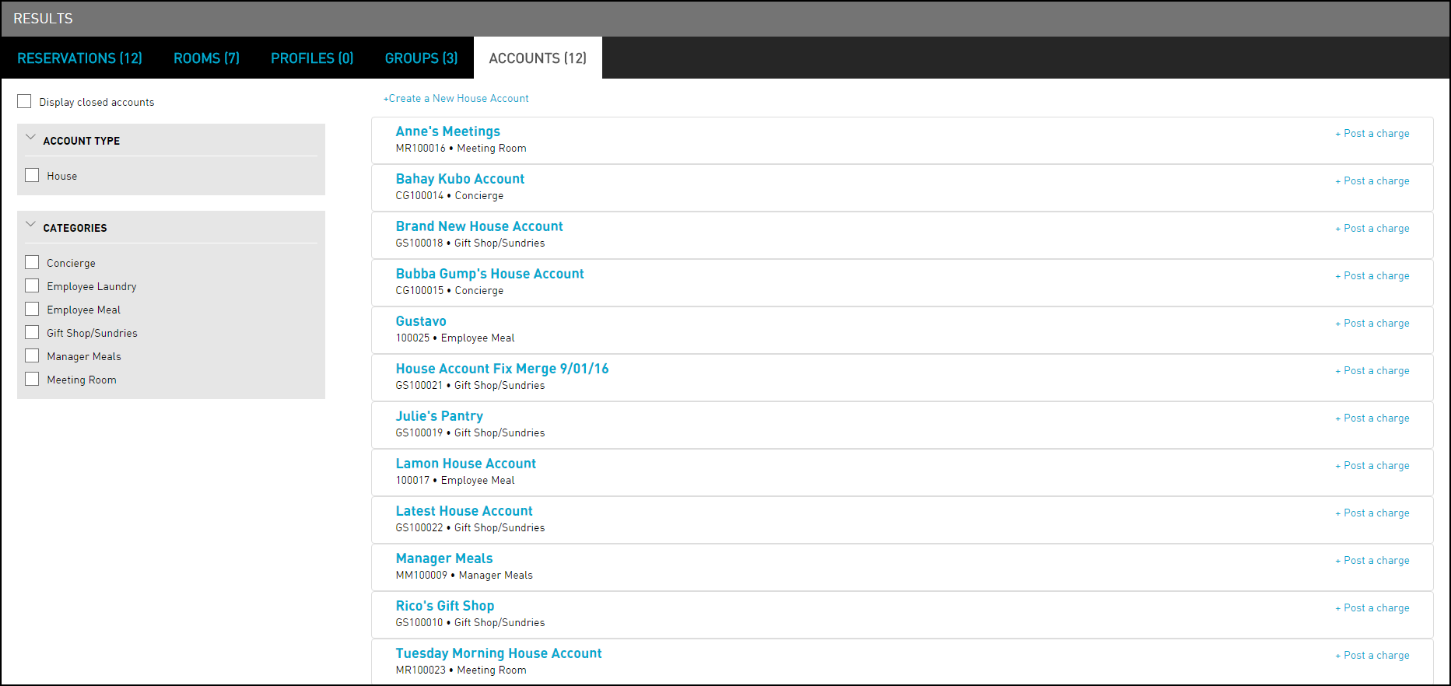
Refer to the following table and fill in the fields to search for a house account:
|
Field |
Description |
|---|---|
|
Display closed accounts |
Includes closed accounts in the search and post a charge to show a list of transaction items |
|
Account Type |
|
|
House |
Includes house account type in the search. House accounts are general use folio accounts used for internal purchases |
|
Show Inactive Categories |
Includes inactive categories in the search |
|
Categories |
|
|
Concierge |
Includes the concierge accounts in the search. Concierge accounts are used for items like town car service, flowers, in-room gifts, guest comps |
|
Employee Laundry |
Includes the employee laundry accounts in the search. Employee Laundry accounts are used for items like employee uniforms. The user can organize the account to have sub folios for departments, manager name, employee name, and etcetera |
|
Gift Shop/Sundries |
Includes the gift shop or sundries accounts in the search. Gift Shop or Sundries accounts are used for items like a bag of chips and a bottle of water purchased in a store overseen by the front desk |
|
Manager Meals |
Includes the manager meals accounts in the search. Manager Meals are accounts used for items like employee meals. The user could organize the account to have sub folios for departments and manager names |
|
Meeting Room |
Includes the meeting rooms account in the search. Meeting Rooms are accounts used for making use of meeting rooms |
|
Parking/Valet |
Includes the parking/valet account in the search. Parking or Valet are accounts used for items like parking for a non-guest who wants to pay for the parking associated with a meeting they were attending at the property. The user can organize the account to have sub folios for non-guests and employee names |
Click the name of an account to open the account's summary page.
Creating a New House Account
Users can now create a new house account. Perform the following steps to create a new house account.
Navigate to Reservations ➜ Search ➜ Accounts. The Accounts tab is displayed.
Click +Create a New House Account. The Create a New House Account page is displayed.
Refer to the following table and fill in the fields to create a new house account.
|
Field |
Description |
|---|---|
|
Name |
Enter the name of the house account. |
|
Category |
Select the category for the house account. |
|
Account Number |
The account number of the selected category is displayed. |
|
Description |
Enter a description for the house account. |
|
Credit Limit |
Enter the credit limit to be set for the house account. |
|
Folio Name |
The folios for the new house account is displayed. Click the + Add a Folio button to add a new folio. |
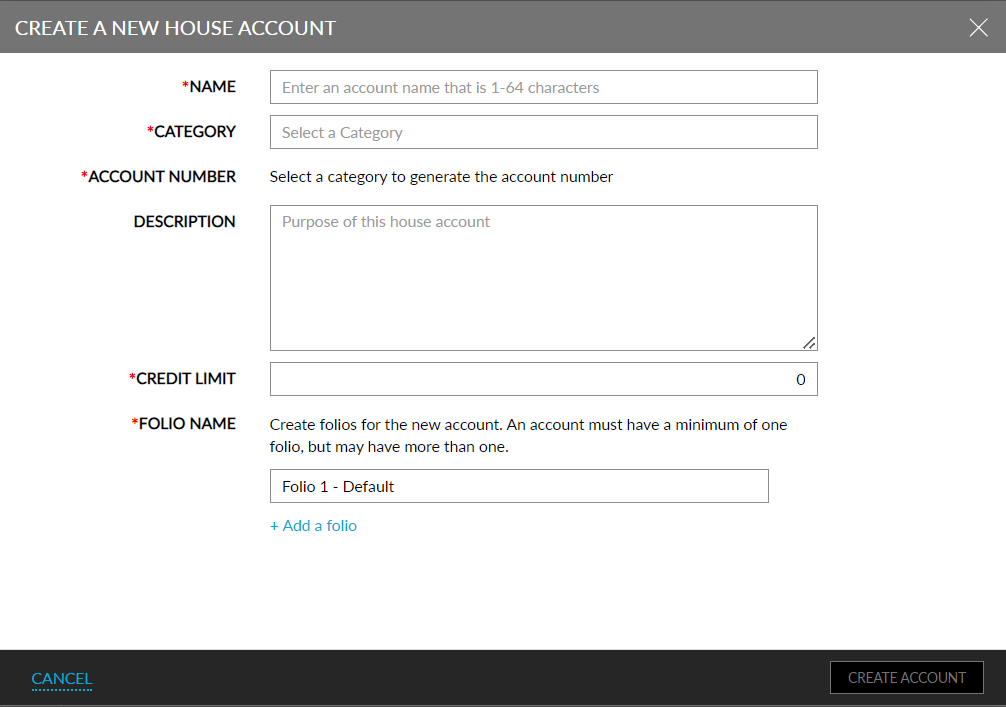
Click Create Account. A new house account is created, and the following screen is displayed.
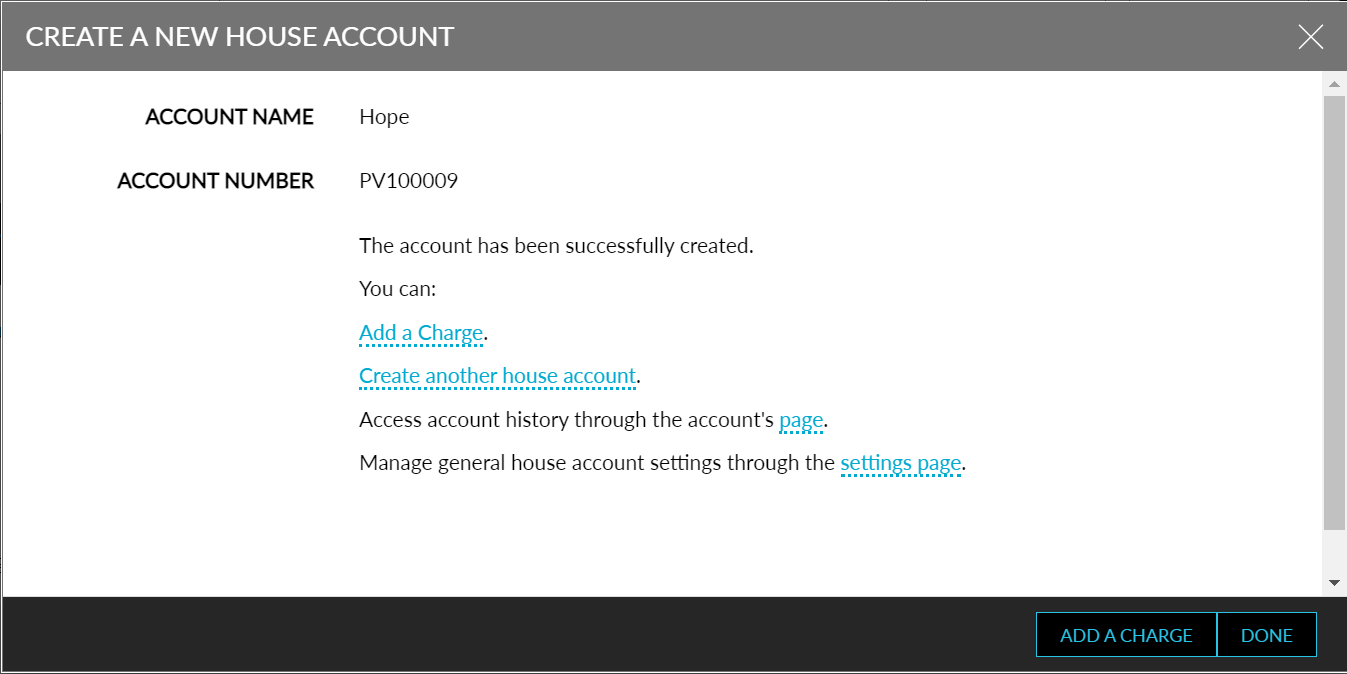
Users can add a charge to the house account by clicking the Add a Charge button.
Click Done. The created house account is displayed under the Accounts tab.
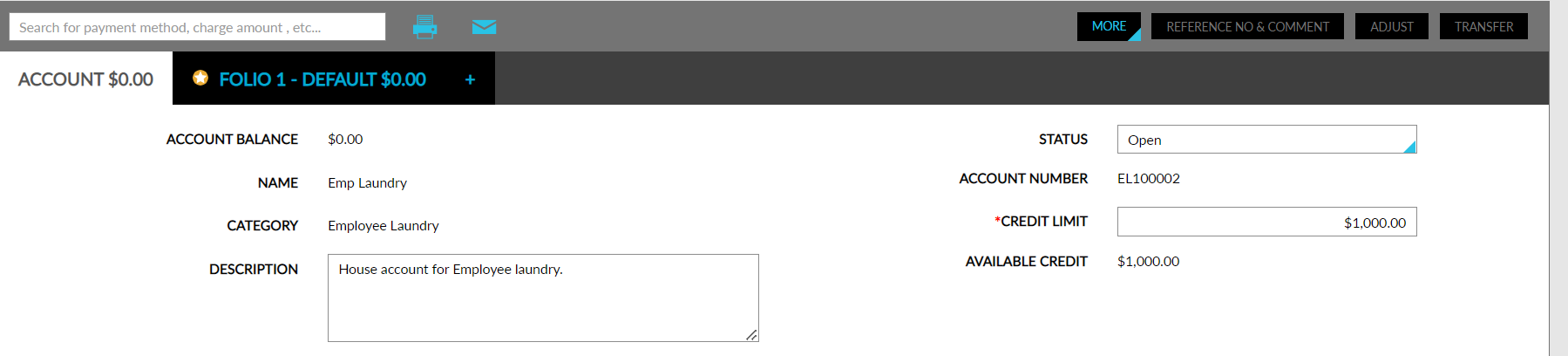
Users can set if a POS charge should be posted for a specific house account. Users can select either of the following options in the Point Of Sale section under the Accounts tab of the selected house account to include or exclude charges from external POS systems.
-
Allow charges - To include charges from external POS systems.
-
Do not allow charges - To not include charges from external POS systems.
Non-Refundable Payments and Deposits for House Accounts
Stay allows users to mark payments and deposit amount paid by guests as non-refundable and restrict them from being refunded.
Feature Settings
-
Name: Non-Refundable Deposits/Payments
-
Value: Must be enabled
-
Comments: License is not required
Permissions
-
Stay_OverrideNonRefundablePaymentsandDeposits: This permission enables users to successfully refund a non-refundable payment/deposit.
-
Stay_ OverrideNonRefundable: This permission enables users to successfully override the cancellation fee and cancel the reservation.
When payments are made for a house account folio, users can mark the payments as Refundable or Non-Refundable by enabling/disabling the Non-Refundable flag on the Make Payment and Split Payment screens (House Account ➜ More ➜ Make a Payment).
The Non-Refundable payments made for the house account folios are indicated by the Non-Refundable Payment indicator in the payment record created in the folios.
Searching for an A/R Account
This option allows users to manage and store information about a guest's folio and their current invoices. The user can easily search for any existing reservation.
Perform the following steps to search for an A/R account:
Navigate to Reservations ➜ Search ➜ Accounts. The Profiles tab is displayed.
To search the company, enter the company's name in the Search field, and click Go. Based on the entered details, the search results are displayed.
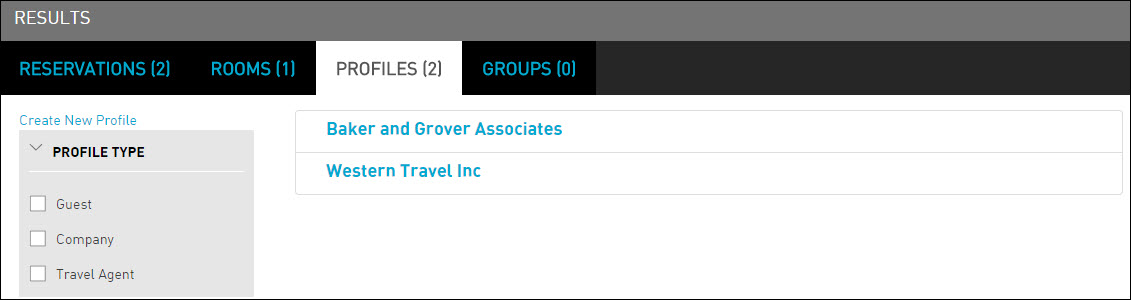
Refer to the following table and fill in the fields to search for an A/R account:
|
Field |
Description |
|---|---|
|
Profile Type |
|
|
Guest |
Select the radio button to view the guest profiles. Guest profiles link to the guest's reservations and enable the users to manage guest preferences, interests, and unique habits. |
|
Company |
Select the radio button to view the company profiles. Company profiles are for organizations that book business for themselves. |
|
Travel Agent |
Select the radio button to view the travel agents. Travel agency profiles are for organizations that book business for other customers and receive commissions based on the revenue that they generate for the property. |
|
Profile |
|
|
Active |
Includes active profiles in the search |
|
Archived |
Includes archived profiles in the search |
The following table lists the various scenarios of account search:
|
Scenario |
Example |
Search Results |
|---|---|---|
|
Search using the account name |
Agilysys Technologies |
The records that exactly match the entered account name are displayed first, followed by the records that match partially, and the results of fuzzy search. Order of display:
|
|
Search using the account number |
GS1000122345 |
The records that exactly match the entered account number is displayed first, followed by the records that match partially, and the results of fuzzy search. Order of display:
|
|
Search using the category |
Gift Shop/Sundries |
When users enter the entire or partial category name, the matching records are sorted and displayed alphabetically. |